Experiments let you run in-game and matchmaking A/B tests to measure the causal impact of changes to your game. For example, you can show different onboarding experiences to different players and measure the difference in playtime, retention, and other key performance indicators.
Experiments are excellent for measuring the following:
- Engagement - Onboarding flows, progression systems, control schemes, custom matchmaking
- Monetization - Shop visibility and user experience, starter pack types, pricing

Create experiments
Experiments come in two types:
- In-game experiments let you measure the impact of different config values.
- Matchmaking experiments let you measure the impact of different custom matchmaking configurations. Unlike in-game experiments, you can only run one matchmaking experiment at a time.
If you don't already have a config, create one for your game.
On the Creator Hub Experiments page for your game, click Create experiment.
For Type, choose In-experience.
Specify a name for the experiment.
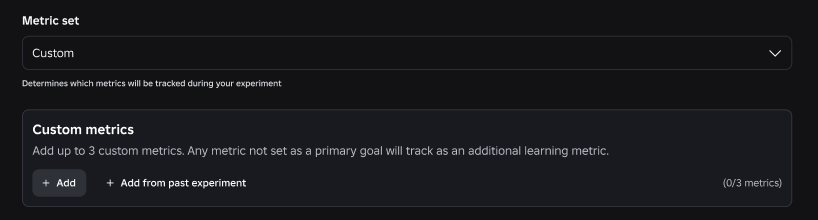
For Metric set, choose the set of metrics that you want the experiment to track:
Metric set What it tracks Default Standard performance and engagement metrics like ARPU, session time, and new user retention. Rewarded Video Earnings Metrics for rewarded video ads: opt-in rate, frequency, impressions, ad earnings, and total earnings per user, plus default engagement, retention, and monetization metrics. Custom The default metrics plus up to three custom metrics that you define from your custom, economy, and funnel events. 
Specify a goal metric and planned duration for the experiment. Experiments run for between 14 and 60 days.
Regardless of what you choose as your goal metric, experiments track all metrics in the metric set. If you choose the Rewarded Video Earnings metric set, Roblox sets the goal metrics for you, so you only need to specify the duration.
Choose a percent rollout. This number is the percentage of players that you want to include in the experiment.
In general, the more people you include in an experiment, the better the data, but use your judgment on what's best for your game.
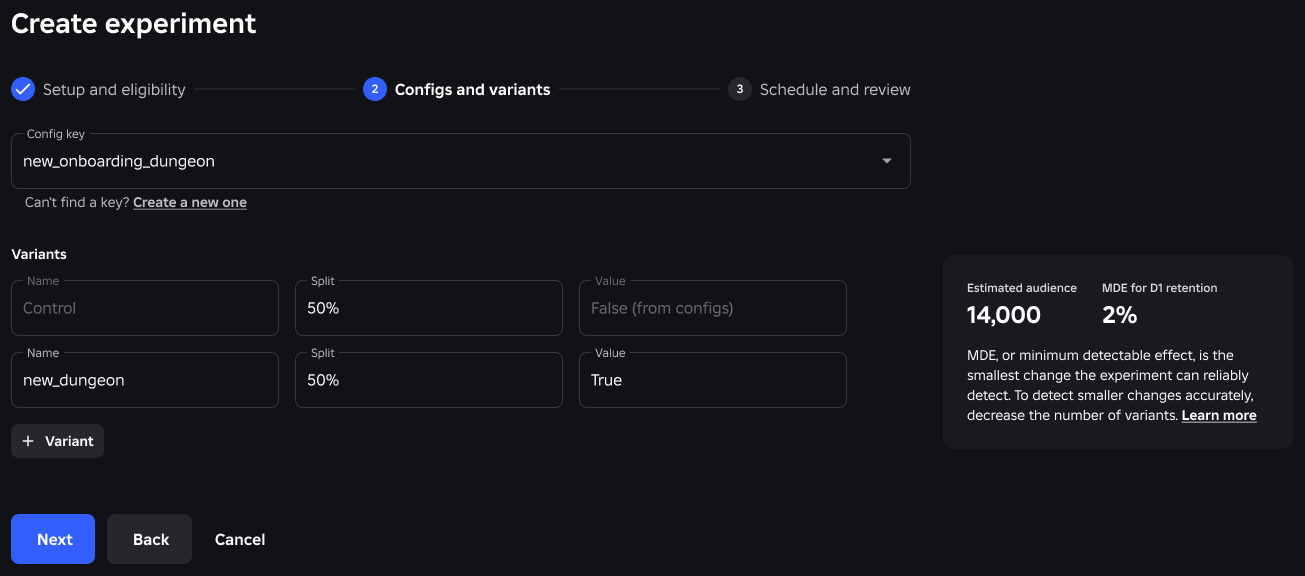
Specify variants and percentages.
Variants are alternative values for your config. For a numeric config key bossHealth with a control value of 500, you might specify a variant of 300. You can have up to two variants and one control in an experiment.
Percentages dictate how to assign variants within the experiment rollout. Consider the following example:
- You choose an overall rollout of 40%.
- You specify two variants and a 50/50 split between them and the control.
In this example, 60% of your users are excluded from the experiment; these users receive the control and have no impact on experiment results. Approximately 20% of your users receive the control as part of the experiment. Another 20% receive the variant. Depending on your player count, this distribution might not be large enough to yield actionable results.
(Optional) Target the experiment to a specific audience so that only matching players are eligible for enrollment. Targeting uses the same player attributes as conditional configs, and you can copy existing conditions directly from your configs. For more information, see Target experiments to specific audiences.

The final step is scheduling. You can start experiments immediately or schedule them for a later date and time. After you schedule an experiment, you can't change its configuration (duration, rollout percentage, variants, etc.), but you can reschedule it.


Metrics
Experiments track all of the following metrics over the experiment duration. These metrics are updated every 24 hours while the experiment is running. However, during the first 24 hours of your experiment, Playtime, Payer conversion rate, and ARPU also update every 5 minutes so you can catch critical regressions (early harm) quickly.
| Metric | Description | Early harm? |
|---|---|---|
| D1 retention | Percentage of new players who returned to your game after one day. | No |
| D7 retention | Percentage of new players who returned to your game after one week. | No |
| Playtime | Average amount of time players spent within your game. Cumulative for the duration of the experiment. | Yes |
| ARPU | Average revenue per user. Revenue divided by the number of players. Cumulative for the duration of the experiment. | Yes |
| ARPPU | Average revenue per paying user. Revenue divided by the number of players who purchased a game-related item. Cumulative for the duration of the experiment. | No |
| Payer conversion rate | Percentage of players who purchased a game-related item. Cumulative for the duration of the experiment. | Yes |
| Session time | Playtime divided by number of sessions. Cumulative for the duration of the experiment. | No |
Experiment status
The Experiments page shows the following statuses for experiments.
| Status | Description |
|---|---|
| Completed | The experiment is over, which happens when you stop it manually, when you reach a decision, or automatically shortly after the decision date (14 days after for in-game, immediately for matchmaking). You can still review the details and results. |
| Decision needed | The experiment has reached its decision date. Now is a good time to review the results. |
| Running | The experiment is running but has yet to reach its decision date. |
| Scheduled | The experiment is scheduled to start at a future date. |
| Draft | The experiment hasn't been started or scheduled. You can finish setting it up. |
Custom metrics
By default, experiments track topline metrics like playtime, ARPU, and D1 retention. These metrics tell you whether a change had an overall impact, but you might also want to know the specifics of what changed in your game, such as whether players were more or less likely to use an ability, beat a boss, or complete the onboarding flow.
Custom metrics let you add your own operational metrics to an in-game experiment, built from the custom events, economy events, and funnel events that you already log with AnalyticsService. Use them to:
- Explain a flat result. D1 retention is unchanged, but onboarding funnel completion dropped 8%. You might not want to roll out the change, or you might want to test a different value.
- Justify a rollout anyway. ARPU is flat, but the coin balances of payers are draining faster, which should improve monetization over time.
- Test a hypothesis about your core loop. If you believe that more time spent recording videos leads to more sharing and better retention, you can measure both in the same experiment.
Before you start
- Log your events first. You build custom metrics from events that your game sends, so you can only choose from event names, currencies, and funnels that already have data. To set them up, see custom events, economy events, and funnel events.
- New events take time to process. If you just added an event, it can take up to 24 hours to appear in the dashboard.
Add custom metrics to an experiment
On the Creator Hub Experiments page for your game, click Create experiment and fill in the type and name as usual.
For Metric set, choose Custom.
In the Custom metrics section, click Add. To reuse a metric that you created for a previous experiment, click Add from past experiment instead.
Choose a Source: Custom, Economy, or Funnel.
Choose what the metric measures: the custom event type, the currency, or the funnel and its completion step.
Choose a Calculation. For more information, see Choose a calculation.
(Optional) Add Filters to narrow which events count toward the metric.
Verify the Metric name. Roblox generates a name from your selections, but you can edit it to something your team recognizes, or reset it at any time.
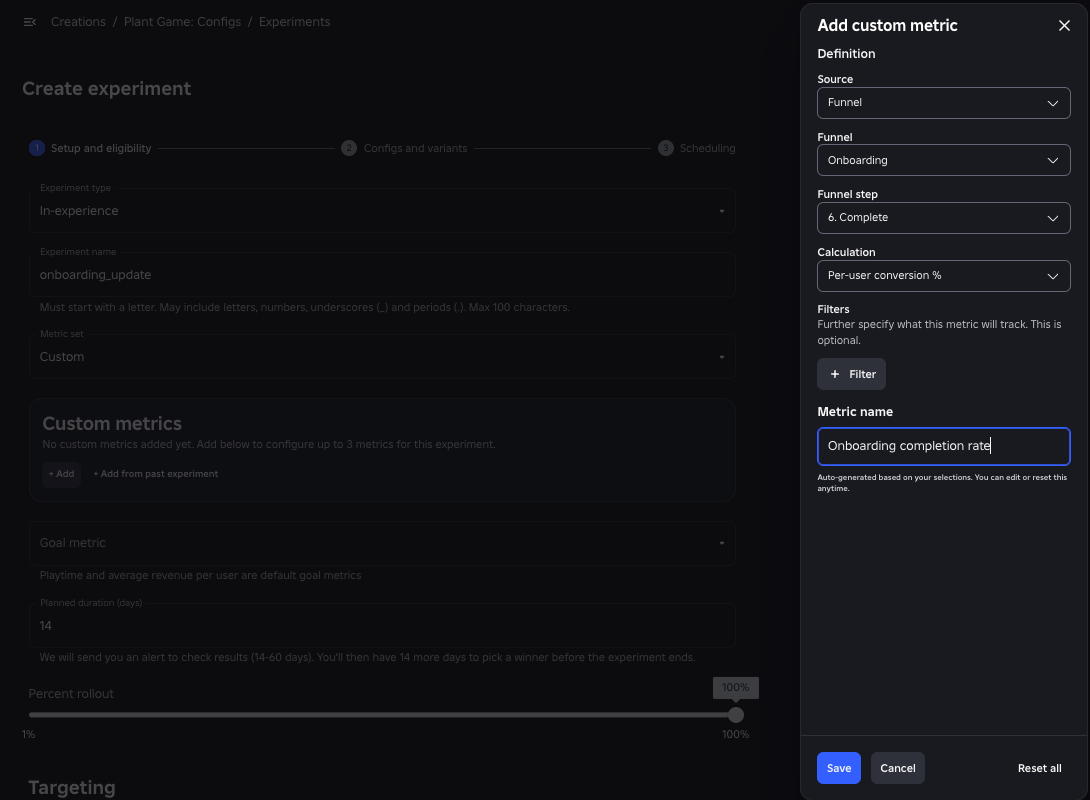
Click Save. You can add up to three custom metrics.
For Goal metric, choose the metric that decides the experiment. Your custom metrics appear in this list alongside playtime and average revenue per user. The experiment still tracks any custom metric that you don't set as the goal metric as a learning metric.
Finish setting up the experiment as usual: duration, rollout percentage, variants, targeting, and scheduling.


Choose a calculation
Every calculation only counts players enrolled in the experiment and only events logged during the experiment. Most calculations use one of two player-based denominators:
- Per all users divides by everyone enrolled in the experiment group, including players who never triggered the event. Use this denominator when you want the metric to reflect both how often the behavior happens and how many players do it at all.
- Per participant divides only by enrolled players who logged the event at least once. Use this denominator when you want to measure intensity among the players who engage, regardless of how many players engage.
The exception is per-instance funnel conversion, which divides by funnel instances rather than players.
Custom event metrics
Select a custom event type, then one of the following calculations:
| Calculation | What it measures |
|---|---|
| Average custom value | Total value of the event, divided by the number of enrolled players who logged it at least once. |
| Average custom value over all users | Total value of the event, divided by all enrolled players. |
| Participation % | Share of enrolled players who logged the event at least once. |
For example, suppose that you're testing a new herb-gathering loop. Add Average custom value over all users on a HerbsGathered event to see whether the variant increases gathering across the whole group, and Participation % on the same event to see whether it attracts players who would otherwise ignore it.
Economy metrics
Select a currency, then one of the following calculations:
| Calculation | What it measures |
|---|---|
| Average net currency delta | Total source minus total sink, divided by the number of enrolled players who logged at least one source or sink event. |
| Average currency source delta | Total amount from source events, divided by the number of enrolled players who logged at least one source or sink event. |
| Average currency sink delta | Total amount from sink events, divided by the number of enrolled players who logged at least one source or sink event. |
To measure spending on specific parts of your economy, filter on specific transaction types or item SKUs.
For example, suppose that you're testing a new season pass that gives coins as progress rewards. You've tuned it so that reaching the final exclusive prize in time requires players to spend coins on gameplay boosts. On your coin currency:
- Average currency sink delta tells you whether players are spending more.
- Average currency source delta tells you whether players are earning more.
- Average net currency delta tells you whether the extra spending is enough to stop balances from inflating.
Funnel metrics
Select a funnel, then a completion step, then one of the following calculations:
| Calculation | What it measures |
|---|---|
| Per-user funnel conversion % | Unique players who reached the completion step, divided by unique players who logged any step. |
| Per-instance funnel conversion % | Unique funnelSessionId values that reached the completion step, divided by all funnelSessionId values that logged any step. |
Keep the following in mind for funnel metrics:
- You must choose a completion step. You can't change this step after the experiment starts, so choose a step that's critical to your metric.
- One-time funnels return the same result for both calculations. For one-time funnels, including the onboarding funnel, per-user and per-instance conversion are equal because each player has only one instance. The calculations only differ for recurring funnels that use funnelSessionId.
- Recurring funnels answer different questions. Per-user conversion answers "how many players complete this at least once," while per-instance conversion answers "how often does an attempt succeed." These metrics can move in opposite directions.
- Skipped steps count as completed. If a player logs step 3 without logging steps 1 and 2, the funnel treats steps 1 and 2 as complete. Repeated steps only count once. For more information, see Skipped steps and Repeated steps.
For example, suppose that you reworked your tutorial. Add Per-user funnel conversion % on the onboarding funnel with the final step as the completion step, and make it your goal metric. Then check D1 retention to see whether better completion actually leads to players returning.
Custom metric examples
| What you change | What you want to know | Metric to add |
|---|---|---|
| Shorten your tutorial from eight steps to five | Do more new players finish the tutorial? | Funnel: onboarding, per-user conversion % with the last step as completion |
| Add a daily quests button to the main menu | Do more players try daily quests? | Custom: participation % on QuestStarted |
| Lower the speed boost price from 100 to 50 coins | Do players spend more coins in the shop? | Economy: coins, average sink delta, filtered to the speed boost item SKU |
| Double the coins from daily login rewards | Are players saving too many coins? | Economy: coins, average net delta (coins earned minus coins spent) |
Read custom metric results
Experiment metrics are cumulative, but analytics dashboards are daily. An experiment metric adds up the whole experiment window and, where the denominator is players, counts each player once. Analytics pages default to a daily view, so the same underlying event produces different numbers in the two places. Use analytics to explore your events and validate that they're firing correctly, and use the experiment results to compare variants against the control.
When you interpret custom metrics, keep the following in mind:
- A custom metric that moves without a topline metric is information, not noise. It usually means that the change worked mechanically but hasn't yet had a statistically significant impact on retention or revenue, or never will.
- Direction isn't always good news. A drop in win rates might be exactly what you wanted if you added more challenges for established players. Before the experiment starts, decide which direction counts as a win.
- Statistical significance still applies. Custom metrics are subject to the same sample size constraints as any other metric. If a change isn't statistically significant, don't act on it.
- Don't overemphasize one metric. If your goal metric is up but a learning metric is significantly down, you have a trade-off to weigh, not a clear win.
Rewarded video metrics
Rewarded video ads can help you earn more from your game, including from players who don't spend Robux. However, you need to tune the placement of rewarded video ads to fit your game and its economy. Where you place the ad and which items you reward players with both affect ad earnings and engagement.
The Rewarded Video Earnings metric set tracks ad performance alongside a selection of default engagement, retention, and monetization metrics, so you can make sure that running ads doesn't hurt the rest of your game. Use it to:
- Tune a rewarded ad. Test a larger reward or a different placement, and check whether opt-in rate and frequency go up.
- Check the trade-off. If ad earnings go up, check whether playtime, retention, or payer conversion went down. Total earnings per user shows the combined effect of ads and microtransactions.
- Reach players who don't pay. Test whether an ad option brings in earnings from players who haven't made a purchase, without lowering what your payers spend.
Set up a rewarded video earnings experiment
Rewarded video experiments are in-game experiments, so they work like any other in-game experiment. You control the ad feature, such as the reward size or ad frequency, with a config. Each variant has a different config value, and your code reads the value with ConfigService:GetConfigForPlayerAsync(). For more information, see Add experiments to your code.
If you don't already have a config for the rewarded video ad that you want to test, create one. For example, create a numeric config key adCooldownSeconds with your current cooldown time as the control value.
On the Creator Hub Experiments page for your game, click Create experiment.
For Type, choose In-experience.
For Metric set, choose Rewarded Video Earnings. Roblox sets impressions per user and total earnings per user as the goal metrics, so you don't need to choose one.

Finish setting up the experiment as usual: duration, rollout percentage, variants, targeting, and scheduling.

Rewarded video earnings metrics
The Rewarded Video Earnings metric set tracks the following ad metrics, plus a selection of the default metrics so that you can check that ads don't hurt engagement, retention, or monetization.
| Metric | Description |
|---|---|
| Total earnings per user | Earnings per player from rewarded video ads and microtransactions (developer products, passes, private servers, and paid access). Cumulative for the duration of the experiment. |
| Impressions per user | Ad impressions per player. Cumulative for the duration of the experiment. |
| Opt-in rate | Percentage of eligible players who watched at least one ad. |
| Frequency | Ad impressions divided by unique viewers. |
| Ad earnings per user | Earnings per player from rewarded video ads. Cumulative for the duration of the experiment. |
Target experiments to specific audiences
By default, an in-game experiment can enroll any player in your rollout percentage. Targeting lets you run the experiment on a specific audience instead, such as players in certain countries, specific tenure windows, or active spender tiers. Targeting uses the same attributes as config targeting.
Set up targeted experiments
You configure targeting criteria when you create the experiment. After the experiment starts, you can't change the targeting rules, the control value, the variants, or any conditional rules that the config key uses.
You can reuse existing conditional rules from your configs to define your targeting, but the experiment stores an independent copy of each rule. Editing or deleting the original config condition later has no effect on the experiment's targeting.
Because narrowing your audience reduces your sample size, Roblox updates the minimum detectable effect (MDE) using an estimate of the audience that matches your targeting criteria. Make sure your targeted audience is large enough to produce statistically meaningful results.
How Roblox resolves targeted values
Roblox evaluates experiments first, before any rules from standard conditional configs. When a config key has an active experiment, Roblox resolves the value in this order:
- The active experiment value, if the player is targeted and enrolled.
- The first matching config condition.
- Any subsequent matching config conditions.
- The default value.
Players in the control group receive the value that your existing config rules produce. You can't run more than one active experiment on the same config key at a time.
Per-session evaluation
Roblox evaluates targeting attributes per session, so an individual player's eligibility can change over time:
- If a player matches your targeting criteria during a session, they can be enrolled and receive an experiment variant.
- If they no longer match in a later session, they stop receiving the experiment value and immediately fall back to your standard config rules. If your experiment needs continuity beyond eligibility—for example, a multi-session onboarding flow targeted at new players—persist the value yourself, such as in a data store.
A player's data stays attributed to the variant (or control) they were enrolled in, even if they later stop matching the criteria. For example, D7 retention still counts a player who enrolled on day 0 and whether they returned on day 7, even if they no longer qualify by day 4.
Config changes while an experiment runs
To prevent configuration drift and corrupted experiment data, Roblox locks the config key the moment an experiment starts running:
- You can't edit or delete the running config key, nor can you modify its standard conditional values.
- Any global conditions that the active config references are also locked. You can't edit, delete, or reorder them relative to each other.
The lock releases when the experiment completes.
Add experiments to your code
Applying in-game experiments is similar to applying configs. The main difference is the use of ConfigService:GetConfigForPlayerAsync() rather than ConfigService:GetConfigAsync().
GetConfigForPlayerAsync() retrieves a player-specific snapshot. When you call GetValue(), the snapshot checks for an active experiment and enrolls (or doesn't enroll) the user based on the rollout percentage.
local ConfigService = game:GetService("ConfigService")
local Players = game:GetService("Players")

local function onPlayerAdded(player)
    local playerConfig = ConfigService:GetConfigForPlayerAsync(player)
    local leaderboardColor = playerConfig:GetValue("leaderboardColor")
end

Players.PlayerAdded:Connect(onPlayerAdded)
You must call GetConfigForPlayerAsync() separately for each player; GetConfigAsync() does not apply experiments.
After you call GetValue() on a player-specific snapshot, the player associated with the snapshot is enrolled in the experiment for that key and that key only. All subsequent calls to the method return the same control or variant for the duration of the experiment. Only the first call is random.
Enrollment in experiments isn't limited to new users. Even if a user previously received a value from GetConfigAsync(), you can still enroll them in an experiment using a player-specific snapshot from GetConfigForPlayerAsync().
If a key in a player-specific snapshot doesn't have an active experiment, GetValue() returns the standard config value (or nil if it has no value).
Custom enrollment
If you want to enroll only players that meet criteria based on in-game state, you have to write additional code to check for those criteria and only then call GetValue() to enroll them in the experiment. Consider the following example:
- You want to test a new control scheme in your racing game.
- The scheme is for advanced players, so you want to target players who have won a large number of races.
Your code might look something like this:
local function getControlScheme(player, racesWon)
    if racesWon < 20 then
        return "standardScheme"
    else
        -- Player has many wins, enroll in experiment
        local playerConfigSnapshot = ConfigService:GetConfigForPlayerAsync(player)
        if playerConfigSnapshot:GetValue("useNewControlScheme") then
            return "newScheme"
        else
            return "standardScheme"
        end
    end
end
If you want the control scheme to persist on subsequent sessions, you likely need to add a value to the player's entry in a data store.
View and interpret results
Click View to see details and results. In the Details And Progress tab you can see the total number of players enrolled, as well as the number of players that received the control value and each variant. Viewing this page early in the experiment is useful strictly for making sure the experiment is running properly, not for taking action. Before taking action, see Best practices.

Early harm metrics
For the first 24 hours, or until the first daily results land, early harm metrics update every 5 minutes so you can catch unintended critical harm early. Click Metrics to see these results. Look for critically harming metrics highlighted in red.
Hover over a metric and click View confidence to see the confidence interval.

During this window, results test only for harm, so the confidence interval has no lower bound, only an upper bound. A metric is flagged as critically harmful only if the entire confidence interval falls below the critical harm threshold. In the following example, Playtime is at -12.67% with an upper bound of -2.73%. Even though the estimate is lower than the critical harm threshold of -10% and the entire confidence interval is below 0%, the metric is not classified as critically harmful because the interval is not entirely below the harm threshold.

Use these results only to guide early stopping decisions in the first 24 hours. Do not use them for launch decisions, rely on daily results instead.
Early harm thresholds
Each metric has its own early harm threshold. If a variant's lift falls below this threshold, it will be classified as critically harmful to that metric. However, for metric variant comparisons with fewer than 10,000 players enrolled across the variant and the control, variant lifts are shown but decisions on harm will not be made until the sample size provides enough data to reliably detect harm.
| Metric | Early harm threshold |
|---|---|
| Playtime | -10% |
| ARPU | -20% |
| Payer conversion rate | -20% |
Early harm notifications
If critical harm is detected in your experiment during the early harm analysis period, a notification is delivered to the game owner and experiment owner for early action. Notifications are delivered via email, Creator Hub notification tray, and through an optional webhook. Upon receiving an early harm notification, you should review the experiment metrics and decide whether or not the experiment should be stopped early.

Daily results
After an experiment has run for at least 24 hours, click Results to see the latest results, which update every 24 hours. Look for statistically significant changes in goal metrics, which the dashboard highlights in green or red. These changes are more likely to show the impact of your variant and less likely to be false positives or negatives.

A metric is statistically significant when the confidence interval for its percent change does not overlap with 0%. In the following example, ARPU is up 2.37%, with lower and upper bounds 0.55% and 4.19%, which makes the change statistically significant.

For convenience, the results page lets you replace the default config value with one of the variants from the experiment.
Sample ratio mismatch
If your experiment is failing to enroll users into the variants in the expected proportions, an alert banner for Sample Ratio Mismatch (SRM) will appear in the experiment results tab. If SRM is detected, it is recommended to stop and restart your experiment.
SRM is checked every 5 minutes for the first 24 hours of your experiment, and then daily after. SRM can invalidate experiment results; do not make launch decisions based on compromised and unreliable results.

Make a decision
When your experiment concludes, click Make decision to start a guided rollout. Roblox shows any warnings about statistical significance and experiment duration, then prompts you to select a winning variant or keep the control. Based on your choice, Roblox rolls out the appropriate change to your permanent configs; returning to the Configs page shows the new value. Click Change winner if you change your mind.
If you have unresolved staged changes on the config when you complete the experiment, Roblox temporarily stashes them and restores them on a best-effort basis after the rollout.
Your decision determines the config changes that Roblox proposes:
- Control: Roblox makes no changes to your existing configs.
- Untargeted variant: The variant value becomes the config's new default value. Roblox removes all other conditions on that config key, though they remain in your global conditions list.
- Targeted variant: Roblox integrates the winning rule back into your permanent config using the first applicable option in this priority order:
- Overwrite: If an identical condition already sits at the top of the config, Roblox overwrites its value with the winning variant's value.
- Add existing: If a matching global condition exists and would naturally sit at the top, Roblox adds it to the config with the variant's value.
- Promote: If a matching global condition can be safely promoted to the lowest rank needed to make it the top rule in this config (without altering other configs), Roblox adds it to the config and reorders it globally.
- Create new: Otherwise, Roblox creates a new global condition ranked one level above the highest condition currently used in the config. If this creates a duplicate rule inside the config, Roblox strips the redundant conditional value while preserving the global rule.
Best practices for experiments
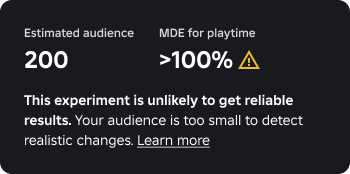
Use the minimum detectable effect (MDE) to decide if your experiment is worth running.
Roblox calculates MDE using your goal metric and number of players per variant, which is based on daily active users, rollout percentage, experiment duration, and variant splits. If the MDE is too high for your goal metric (for example, more than 100%), it's unlikely you can reach statistical significance. Games with fewer than 1,000 daily active users might struggle to get useful data from experiments.
Start with a hypothesis. Rather than just changing a variable and checking the results, write a cause-and-effect statement about what you changed, what you expect to happen, and why. As you experiment more and more, having a set of written hypotheses to accompany your results can help clarify your thinking and spark new ideas for experiments.
Let experiments run for their full durations. The novelty effect (temporary interest in a change not because it's better, but because it's new) can heavily skew early results, sometimes causing them to swing in and out of statistical significance. Ending experiments early increases the odds of you taking premature action based on anomalous spikes that more data would have smoothed out or even contradicted.
- The exception is early harm in the first 24 hours: if metrics are flagged as critically harming or you see sample ratio mismatch, review and consider stopping. Do not use early harm results for launch decisions.
Don't act without statistical significance. Even seemingly large changes in player behavior might not be statistically significant, generally due to small sample size. If a change isn't statistically significant, ignore it.
Avoid changes during experiments. Major bugs of course need fixes, but changes to game content can impact player behavior and invalidate your results, even if the changes seem unrelated to your experiment. Similarly, only run experiments simultaneously if you're confident they won't interact with each other.
Use confidence intervals for deep dives into metrics and to check for borderline cases of statistical significance. If the confidence interval is too wide, the metric might never reach statistical significance.
If one metric is significantly up and another significantly down, you have to decide whether the trade-off is worth it, possibly in conjunction with other statistically significant movements.
Experiments provide strong signal, but statistical significance deals in probabilities, not certainties—hence the confidence interval. Data variability, sample size, and magnitude of the change all impact the probability of detecting whether a variant affected player behavior. Any action you take based on the results of an experiment should be balanced against qualitative data like player feedback and your overall vision for the game.
Document your findings and decisions. Even if you don't use them to run additional experiments, having a body of knowledge and evidence can inform how you design your games.
